04
Document
Write, add tables and media, edit together and leave comments
A Document is rich text that several people can edit at once. Use it for briefs, scripts, shot notes, or anything your team needs to agree on.
Write and format
Just type. Start a line with # and it becomes a heading.
Select text to bring up the formatting toolbar: block type, alignment, bold, italic, strikethrough, underline, link, inline code, colour, comment and “Add to Agent”.

Blocks
A document is made of blocks: text, headings 1 to 3, code block, bullet list, to-do list, ordered list, quote, divider, table, image, audio and video.
Hover a line and a handle appears on its left. Drag the handle to move the block; click it for a menu: block type, duplicate, insert below, alignment, colour, comment, “Add to Agent” and delete.
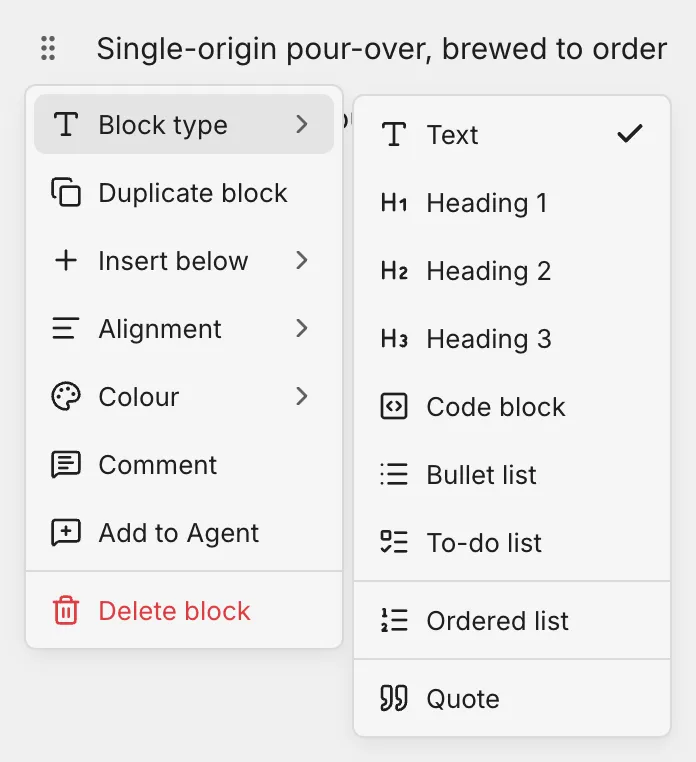
On an empty line the handle is “Insert here”; click it to choose a block to insert.
Tables
In the insert menu choose “Table”, pick the size on the grid and click to insert.
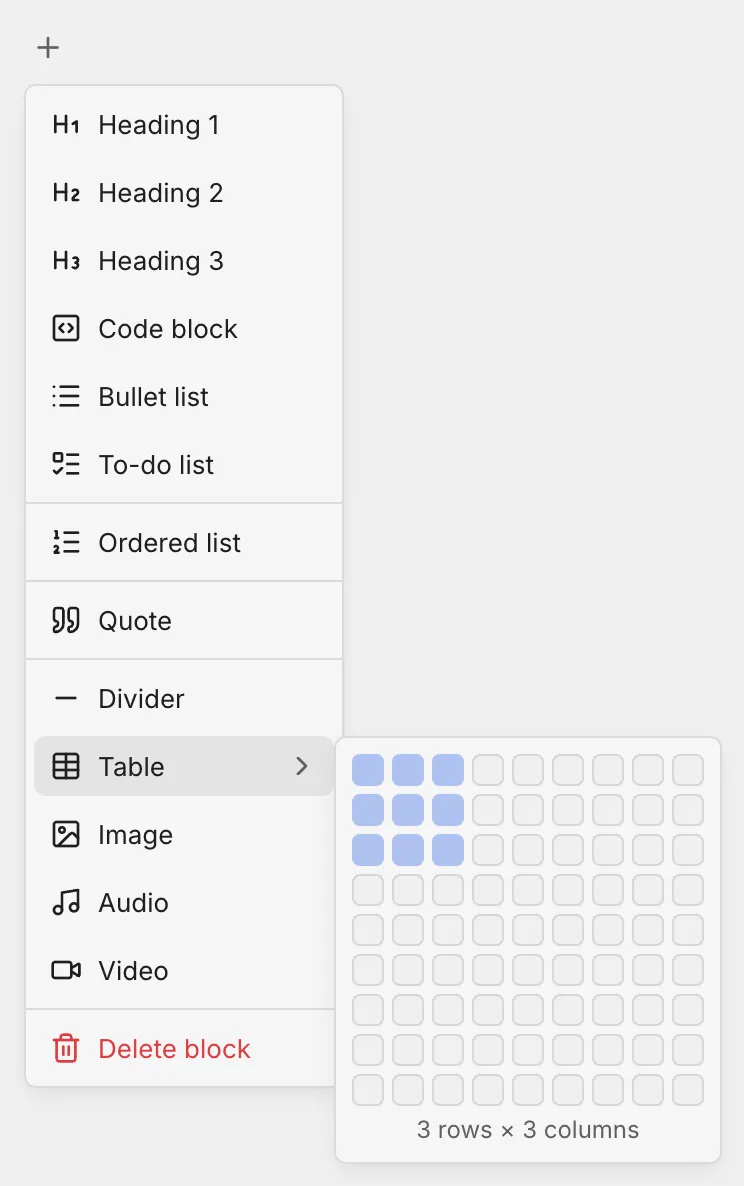
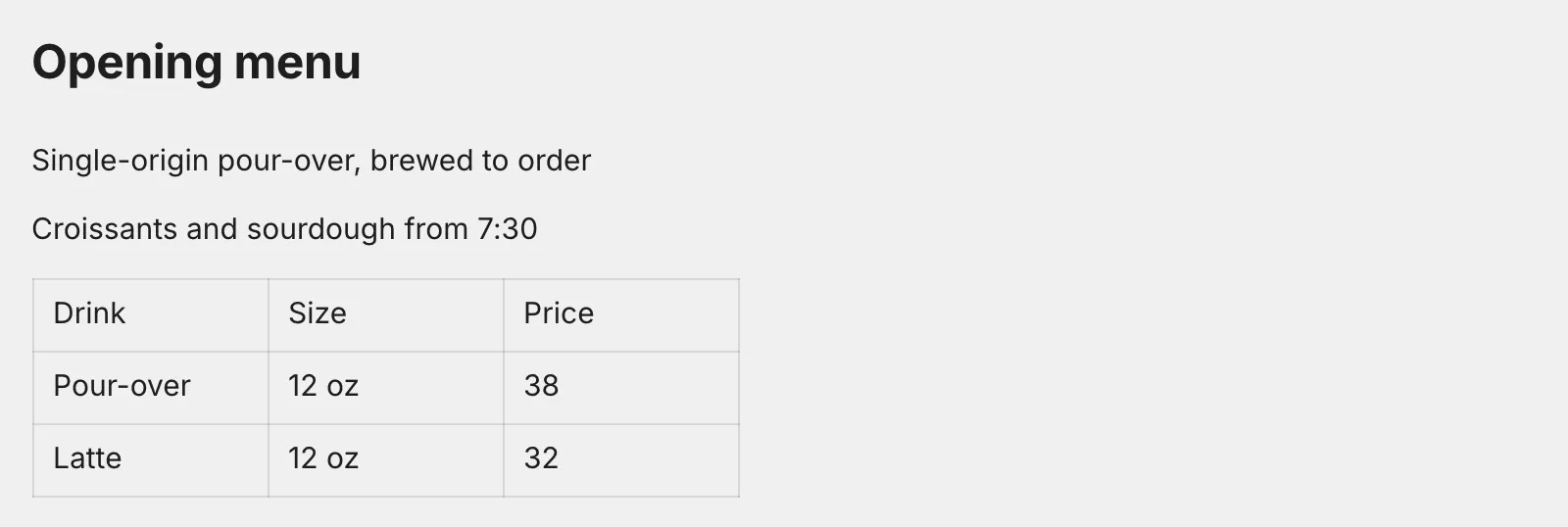
Press Tab to move between cells. You can add and remove rows and columns, set a header, merge and split cells, shade cells, drag column widths, and paste a table straight from Excel or Markdown.
Images, video and audio
Insert an image, video or audio block, or drag or paste a file in. Media blocks can be resized, captioned, viewed full screen and downloaded.
Edit together
Members of the Project can edit a document at the same time and see each other’s cursors and selections. Undo only undoes your own changes.
Comments
Select text and click “Comment” on the toolbar, or choose “Comment” in the block menu. The comments panel opens on the right; write your comment and press Enter.

Comments can be replied to, resolved, reopened and deleted. “Unresolved” and “All” at the top of the panel filter them.