03
Canvas
Nodes, connections, the generate panel, Understand and the node tools
A Canvas is an infinite board. You place nodes on it, connect them, and generate images, video and sound in them.
Add nodes
“Node library” at the top of the left toolbar offers four nodes: text, image, audio and video. You can also click “Upload assets (mixed files)” or drag files straight onto the canvas; each file becomes a node. “Annotate on canvas” drops a sticky note for yourself or your team.
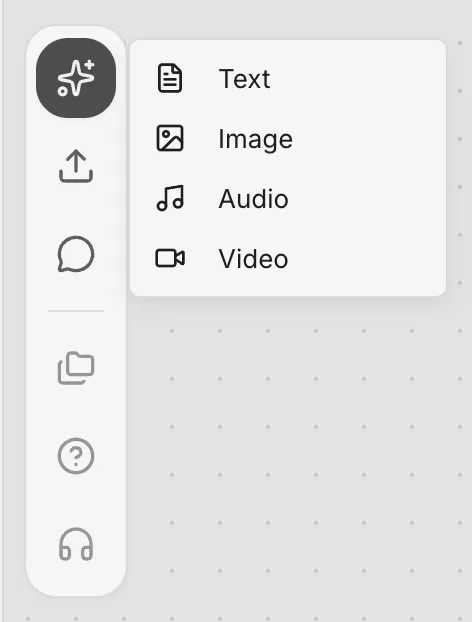
A text node doesn’t generate anything. It holds a shared prompt for the nodes downstream to reference.
Connect nodes
Drag from the dot on either side of a node to an existing node, or let go on empty canvas to create a new node downstream. If two nodes can’t connect, the canvas tells you. A connected upstream node can be referenced in the downstream node’s prompt.
Generate
Right-click an image, video or audio node and choose “Generate”. The generate panel opens under the node.
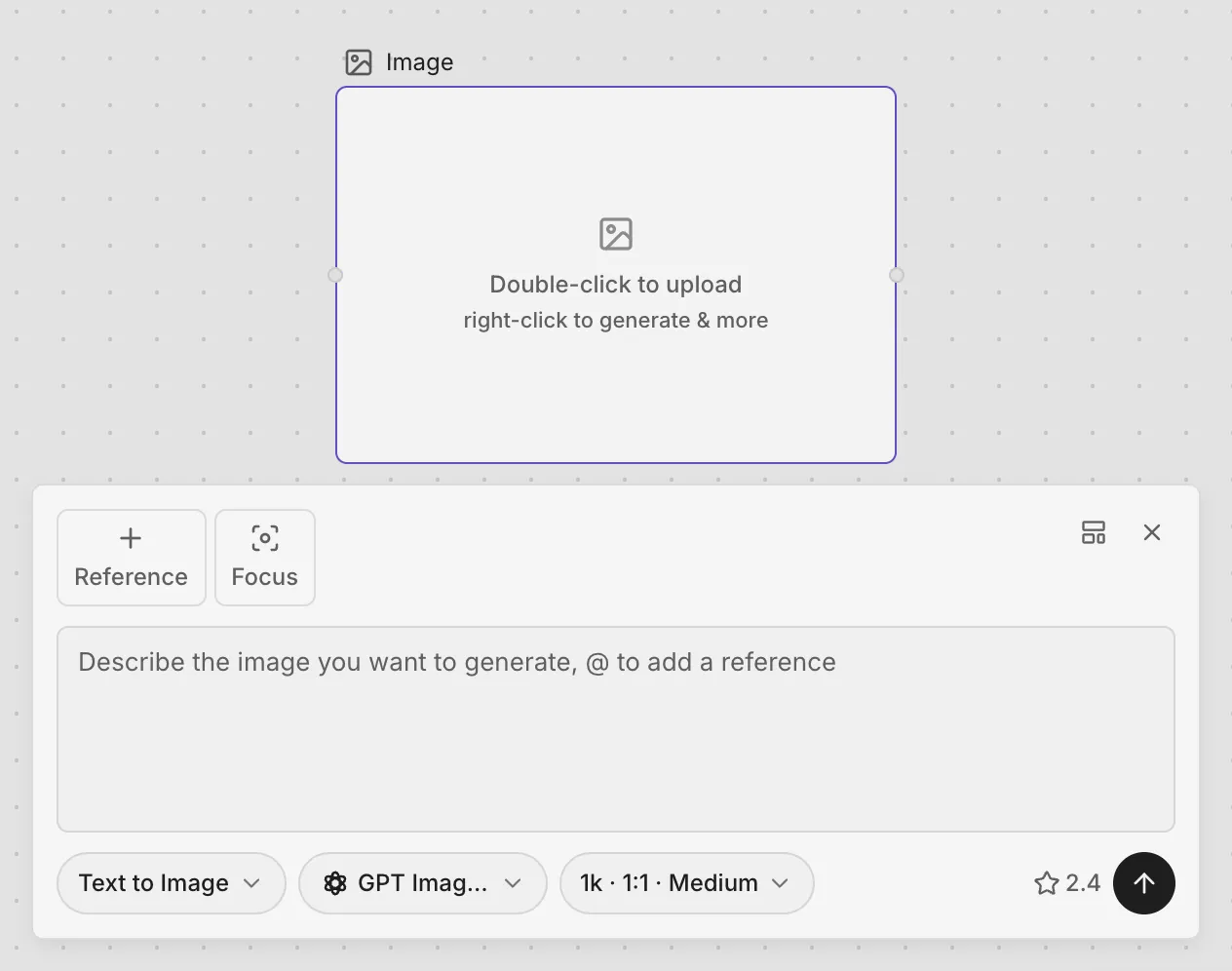
| Part | What it does |
|---|---|
| ”Reference” and “Focus” at the top left | Pick a reference image, or frame the part of it to use |
| Prompt | Describe what you want; type @ to reference an upstream node |
| First button at the bottom | Pick the mode |
| Second button | Pick the model |
| Third button | Pick settings such as resolution, aspect ratio and quality |
| Bottom right | The credits this run takes, and the arrow that starts it |
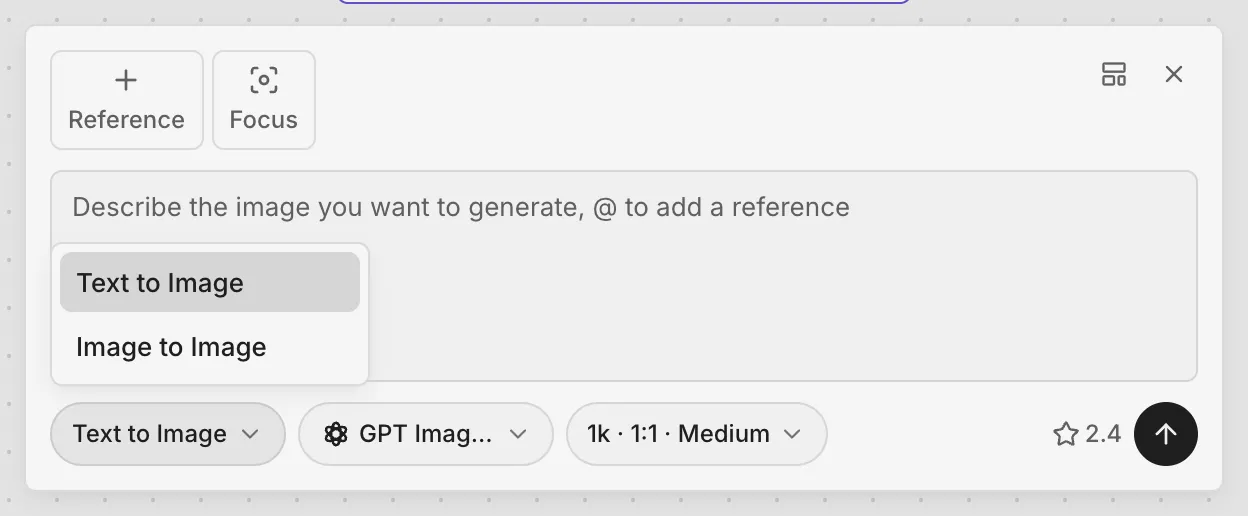
The mode is what you want to make, and the models follow from it. Image has Text to Image and Image to Image. Video has Text to Video, Image to Video, First-Last Frame, Image Animation, Reference to Video, Multi-Shot and Talking Head. Audio has Text to Speech, Voice Cloning, Sound Effects, Text to Music and Reference to Music. Every model’s price is in Models and prices.
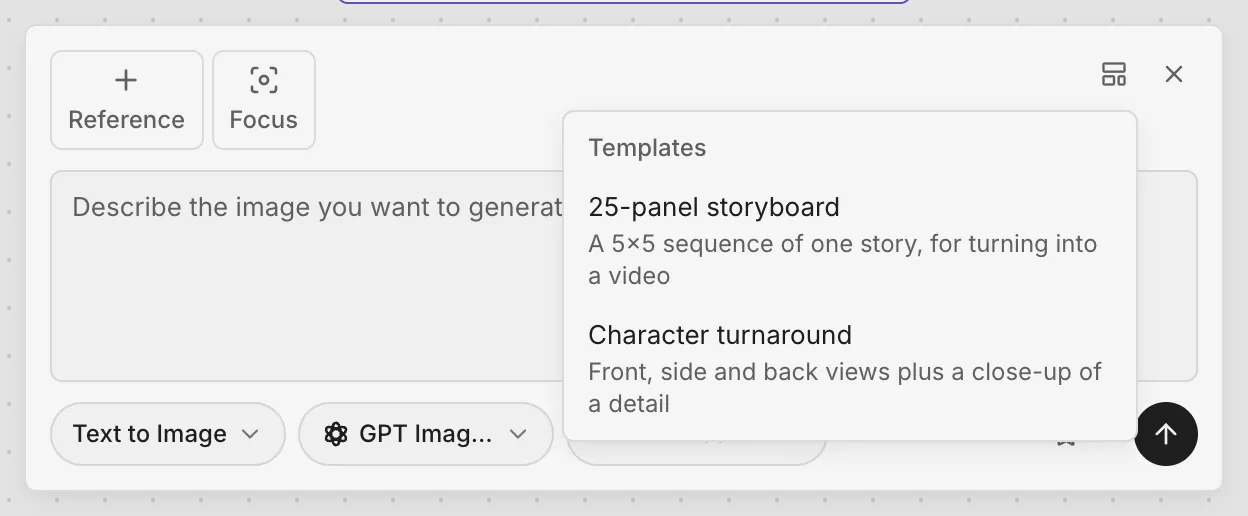
“Templates” holds two ready-made prompts: “25-panel storyboard” and “Character turnaround”. Pick one, fill in the reference image and the parts it asks for, and generate.
A node is busy while it generates and shows its size when the result is in. Generate again if you don’t like it; the new result replaces what the node shows.
Understand
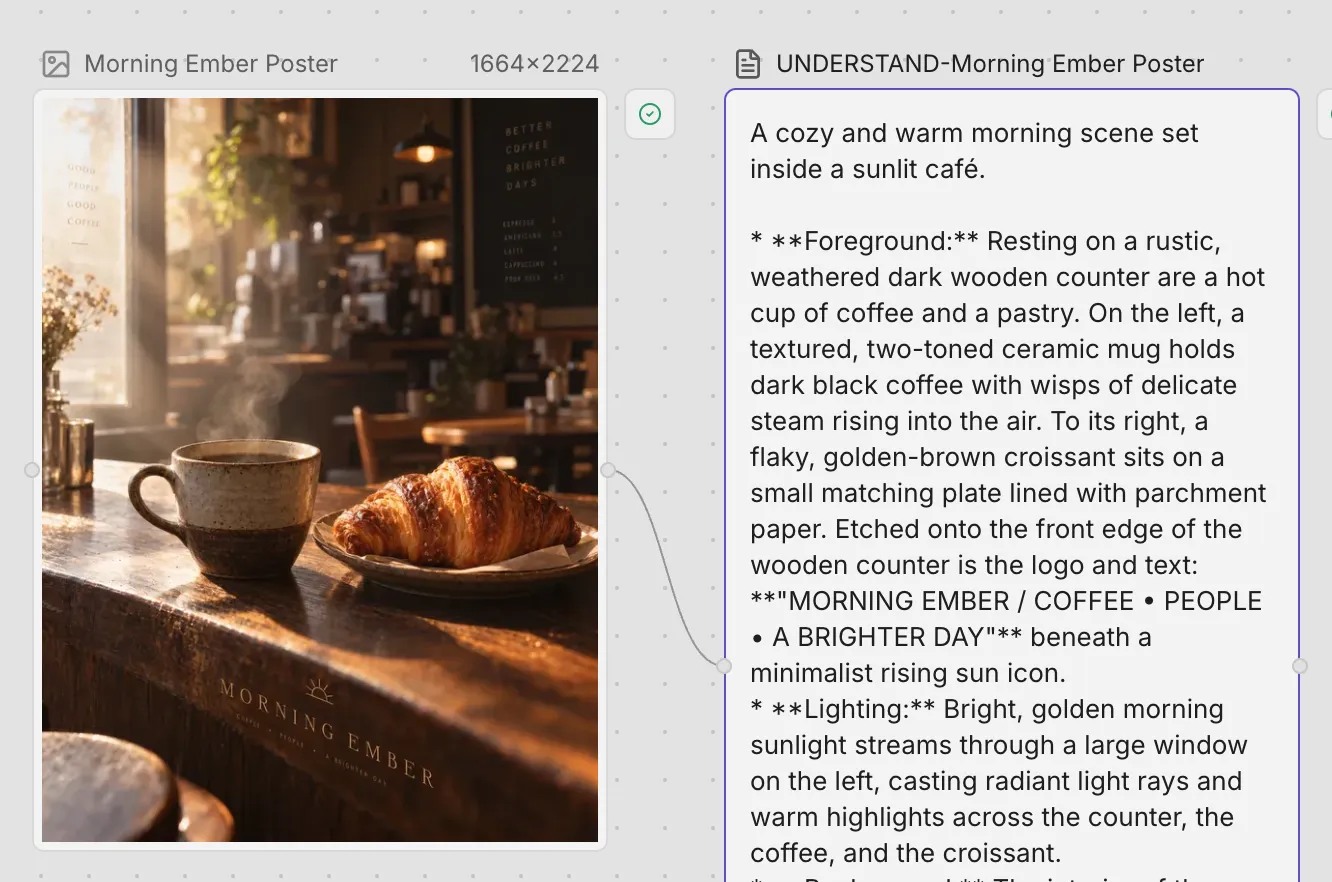
Right-click an image, video or audio node and choose “Understand”. A text node appears downstream, connected to it, describing what is in it: the picture, the words, the sound.
Tools
Right-click a node and choose “Tools” to see the tools for that kind of node:
| Node | Tools |
|---|---|
| Image | Crop, Rotate & flip, Remove background, Upscale, Talking head, Inpaint, Erase, Sketch edit |
| Video | Cut, Crop, Speed, Adjust, Audio denoise, Stabilize, HDR, Upscale, Interpolate, Extend, Edit, Motion transfer, Animate |
| Audio | Separate vocals, Extend |
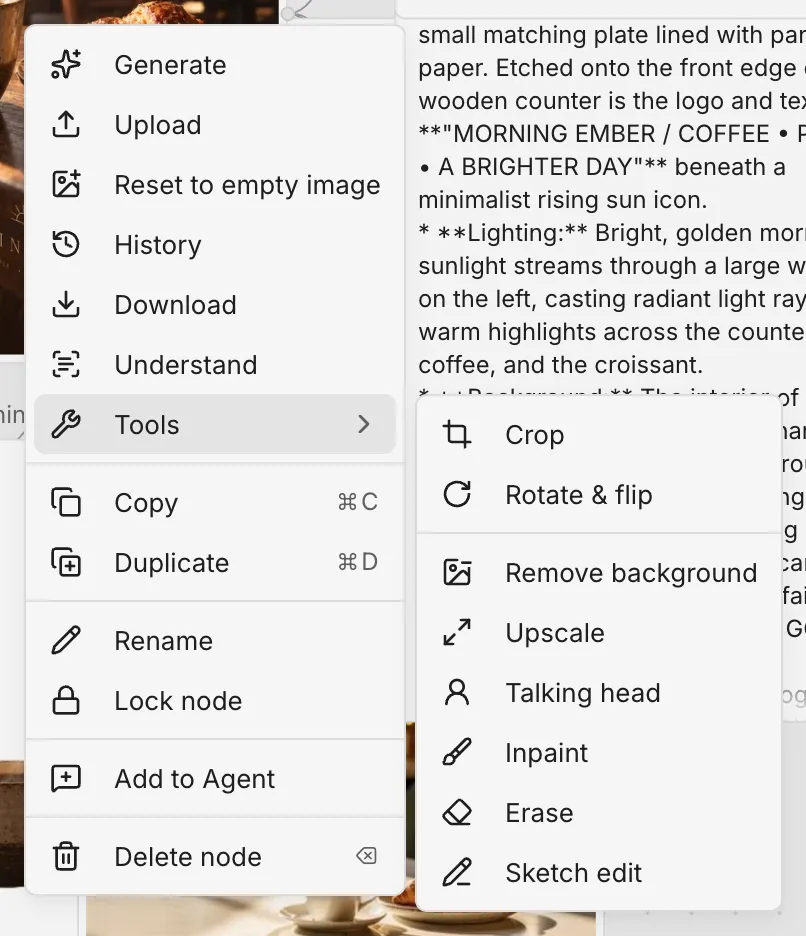
A tool opens a small panel with the credits it takes; click the arrow to run it. The result goes into a new node downstream and the original stays as it was.
More on a node
Right-click a node to also:
| Action | What it does |
|---|---|
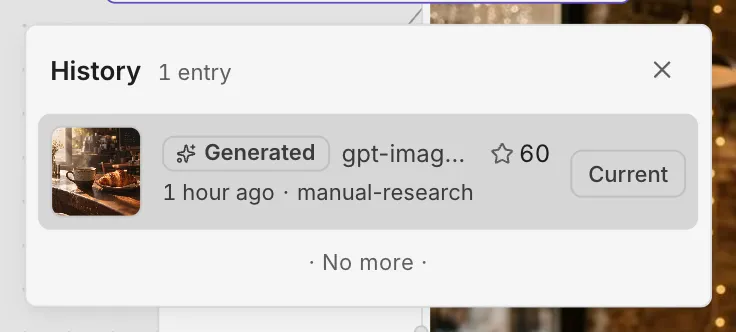
| History | Lists every version the node has generated or received, and restores any of them |
| Download | Saves the node’s content to your computer |
| Copy, Duplicate | Copies the node, including onto another canvas |
| Rename | Changes the node’s title |
| Lock node | Keeps it from being moved or changed by accident |
| Add to Agent | Hands the node to the Agent; see How they work together |
| Delete node | Removes it |
Move around the canvas
The toolbar at the bottom right has undo, redo, zoom out, zoom in, fit to viewport, and switches for grid snapping and the minimap.